simPl
A lightweight reader.
A quiet place for your books.
PDF, EPUB, HTML and Markdown. Windows and Android.
New in 0.1.7
Tools that step aside.
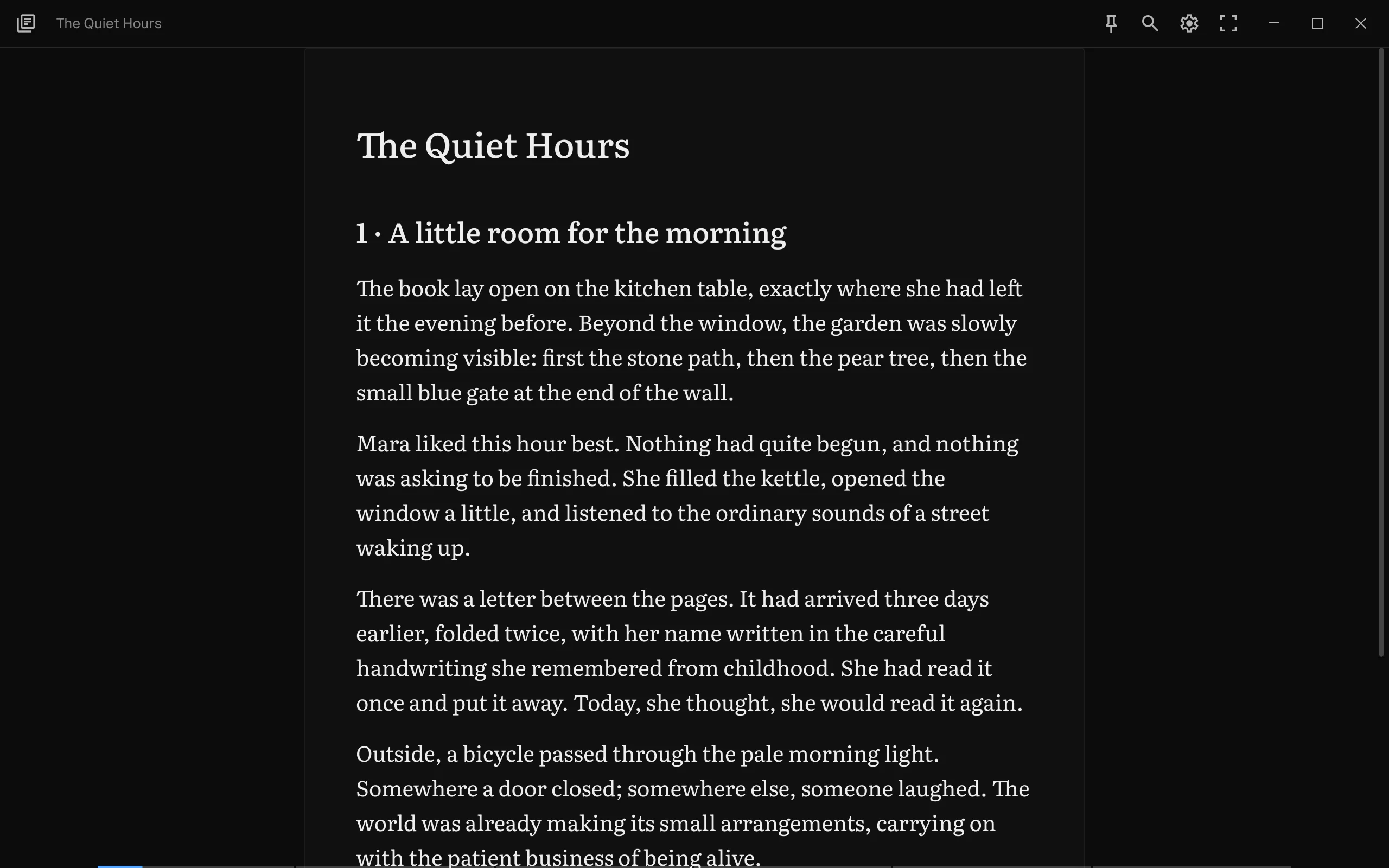
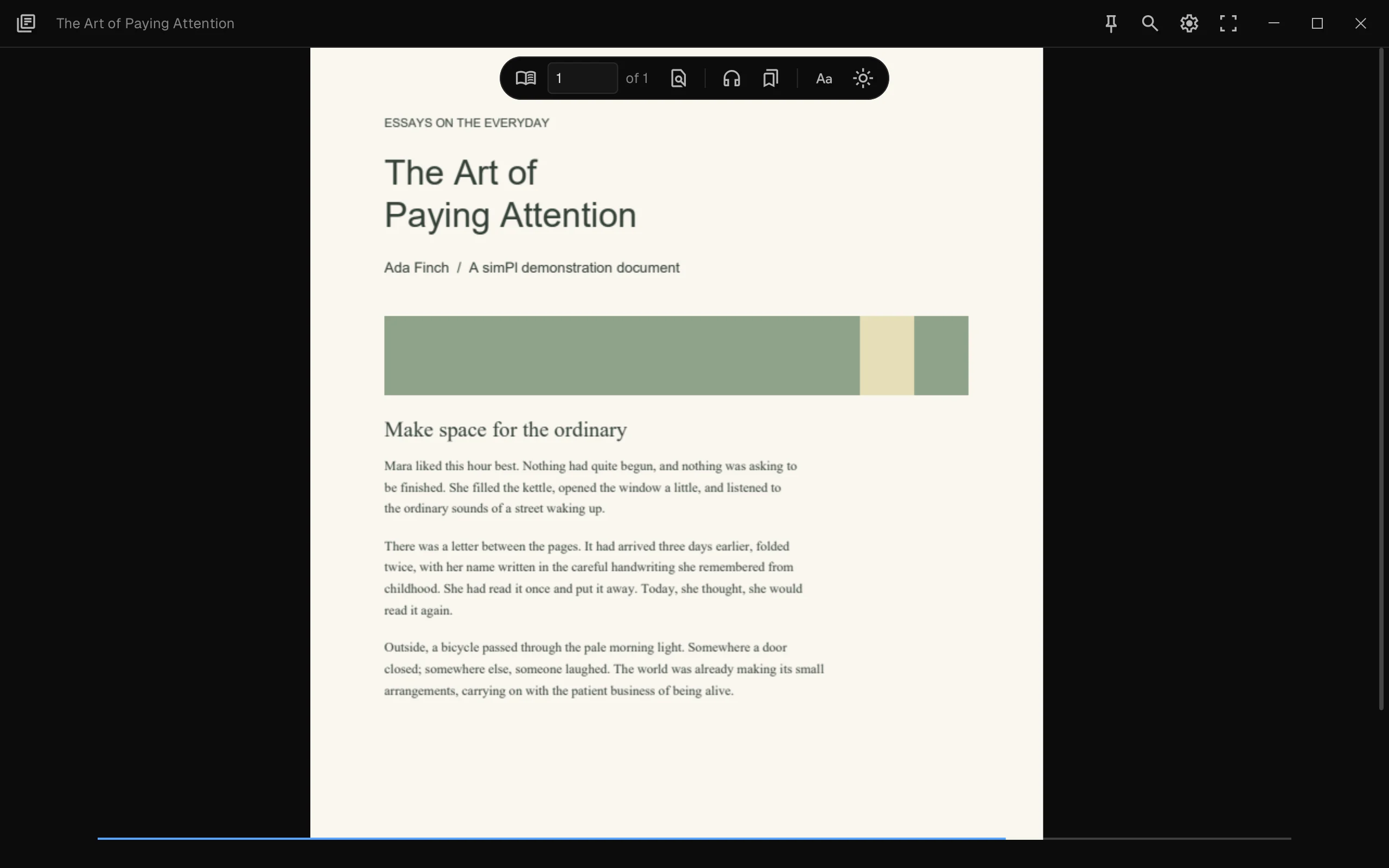
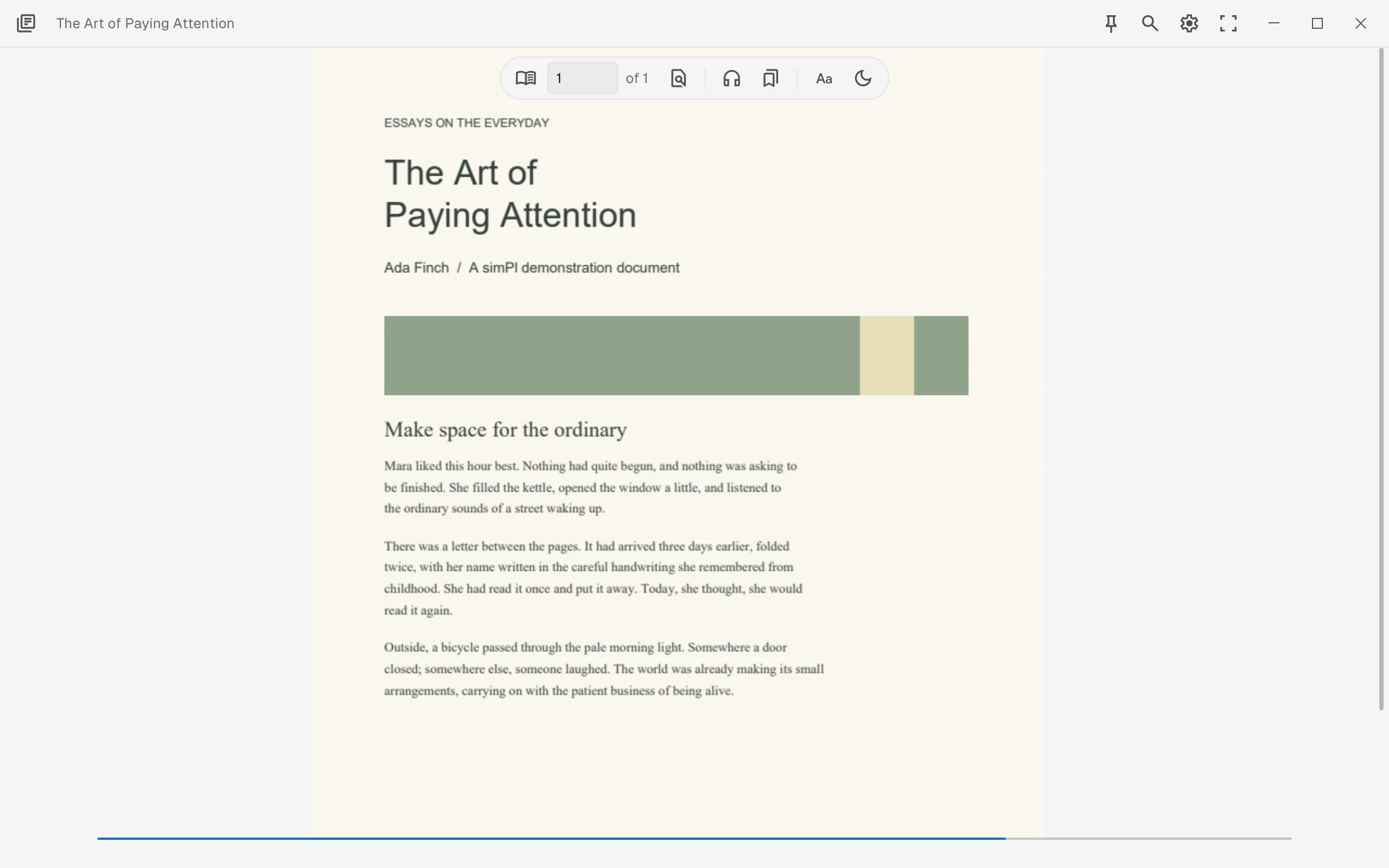
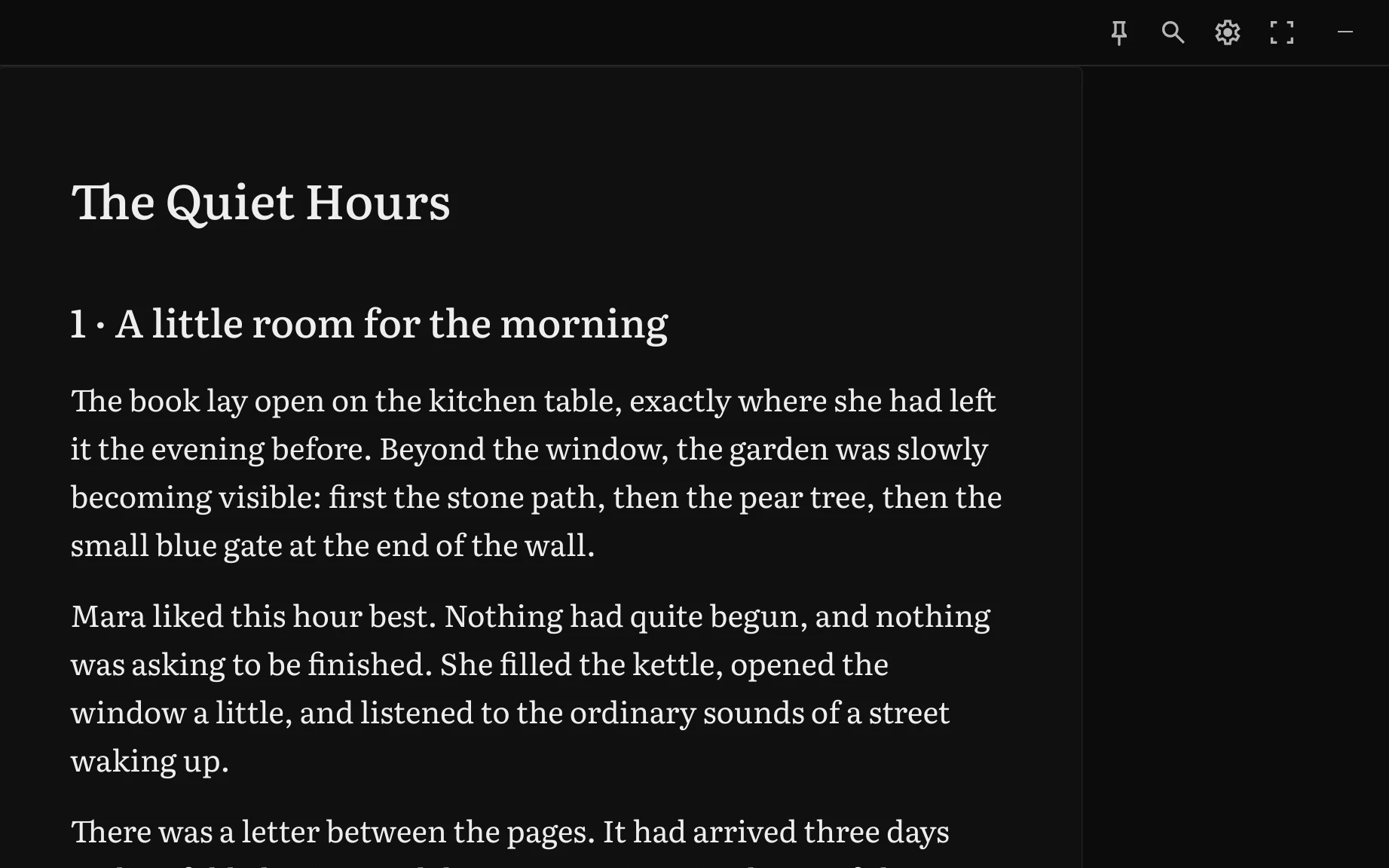
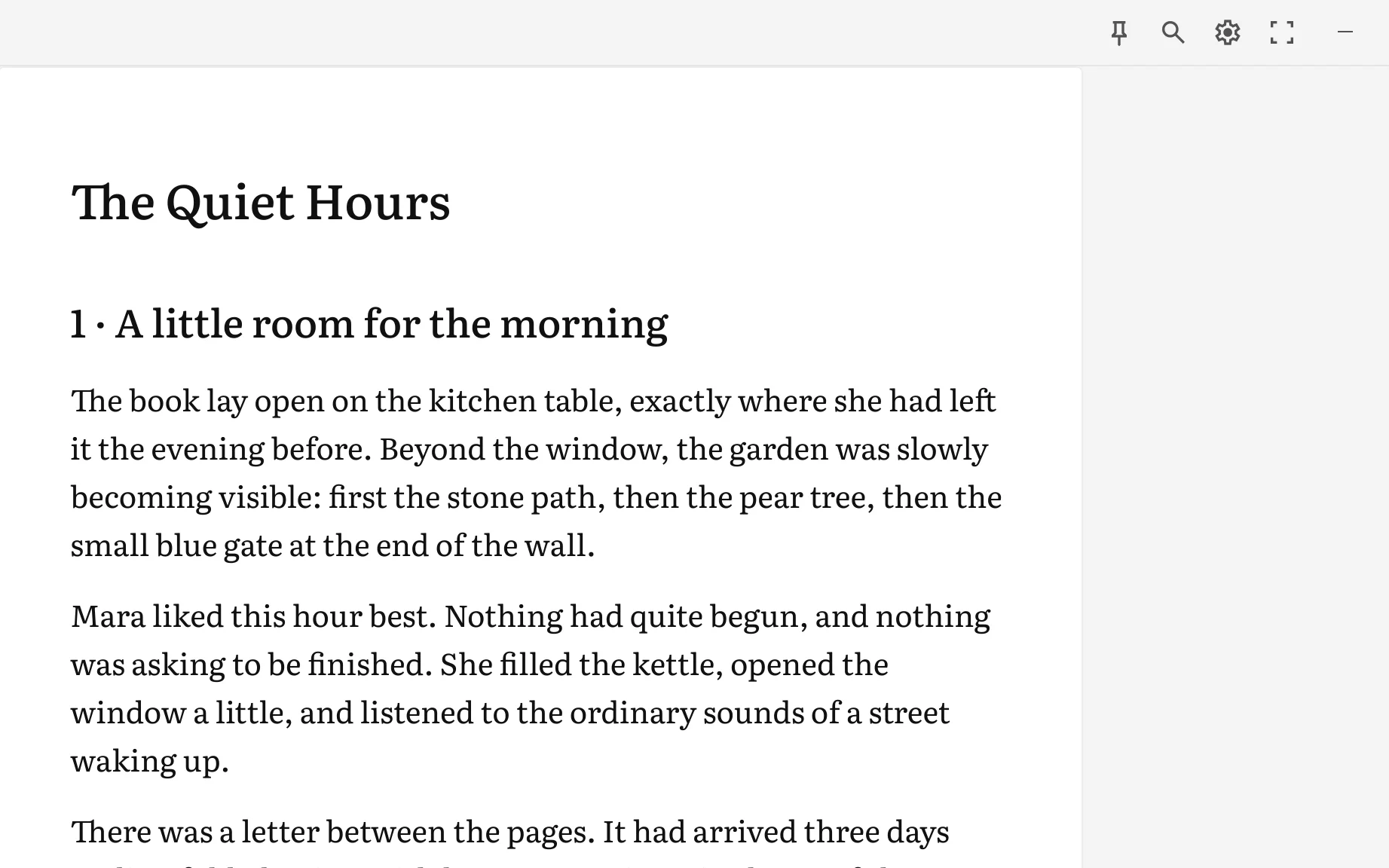
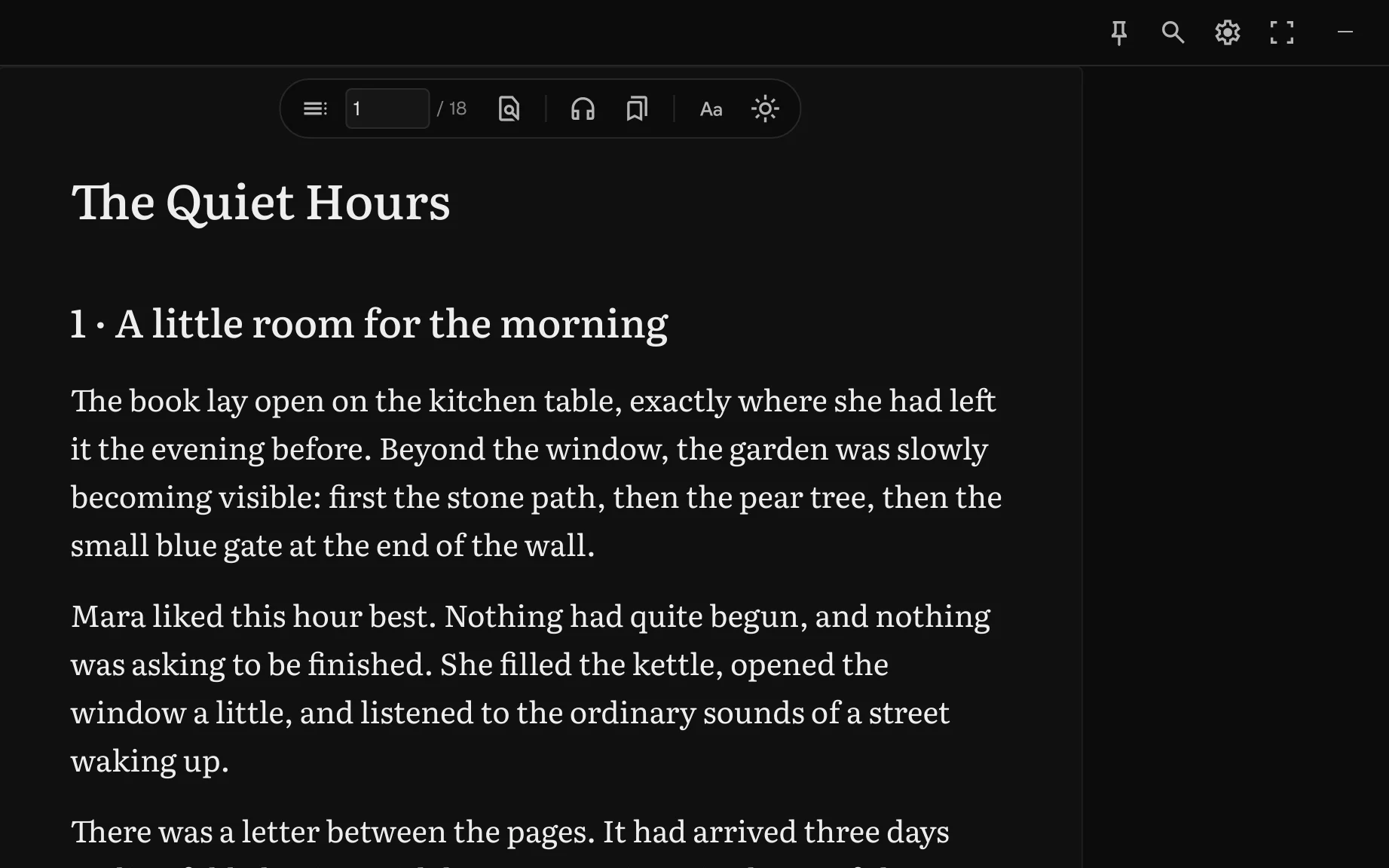
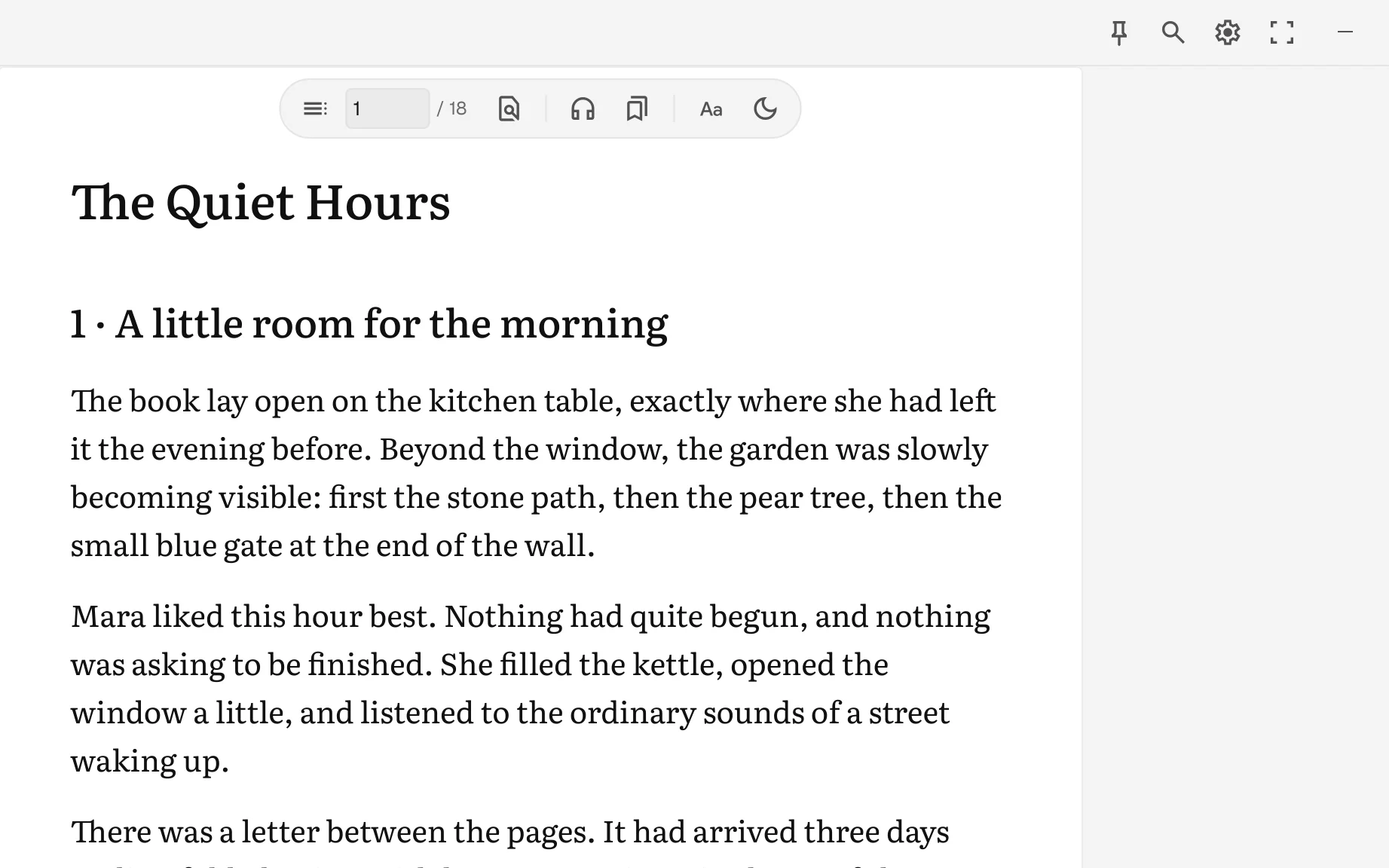
The reading tools hide as soon as you scroll, and come back when you point at the title bar.
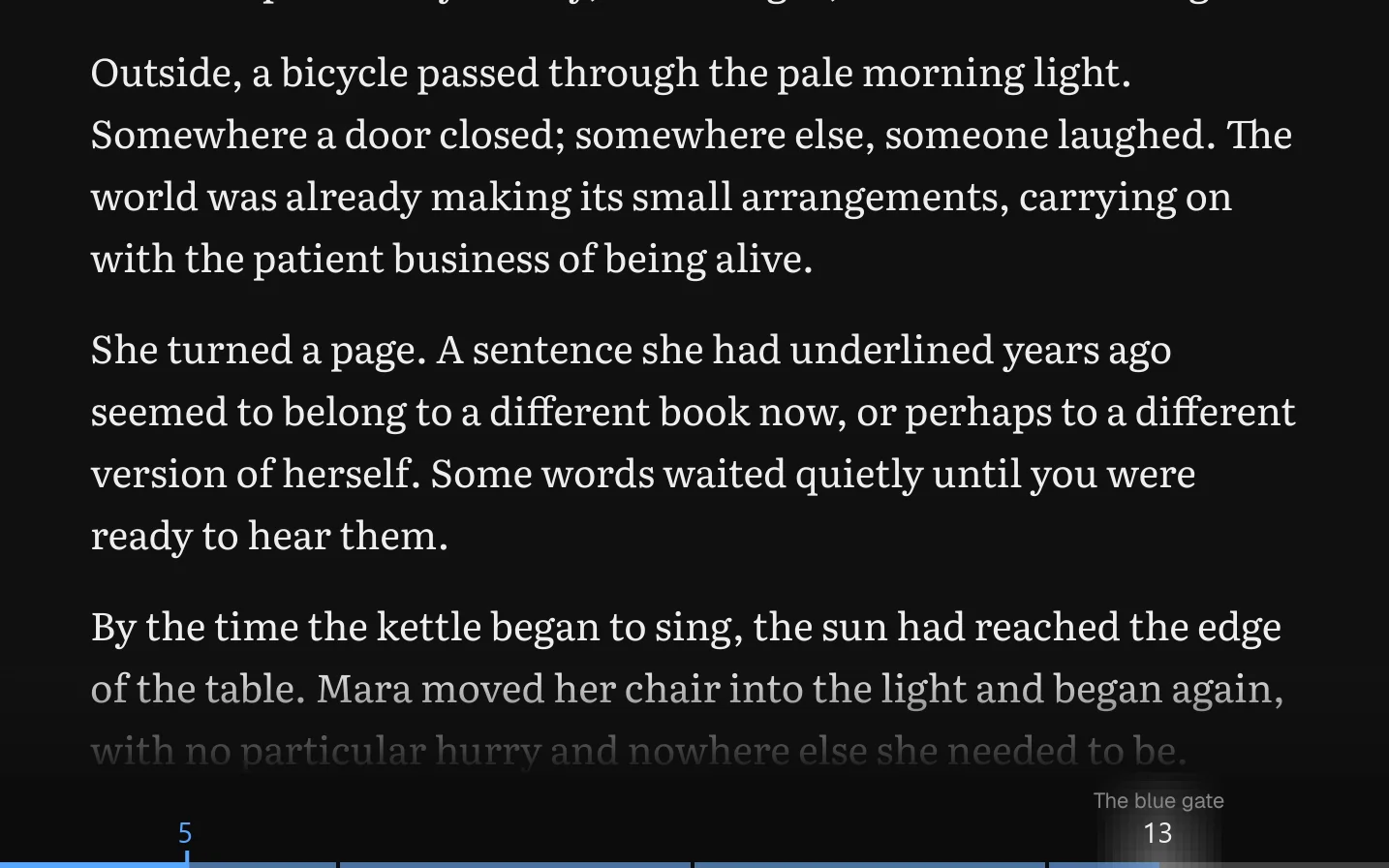
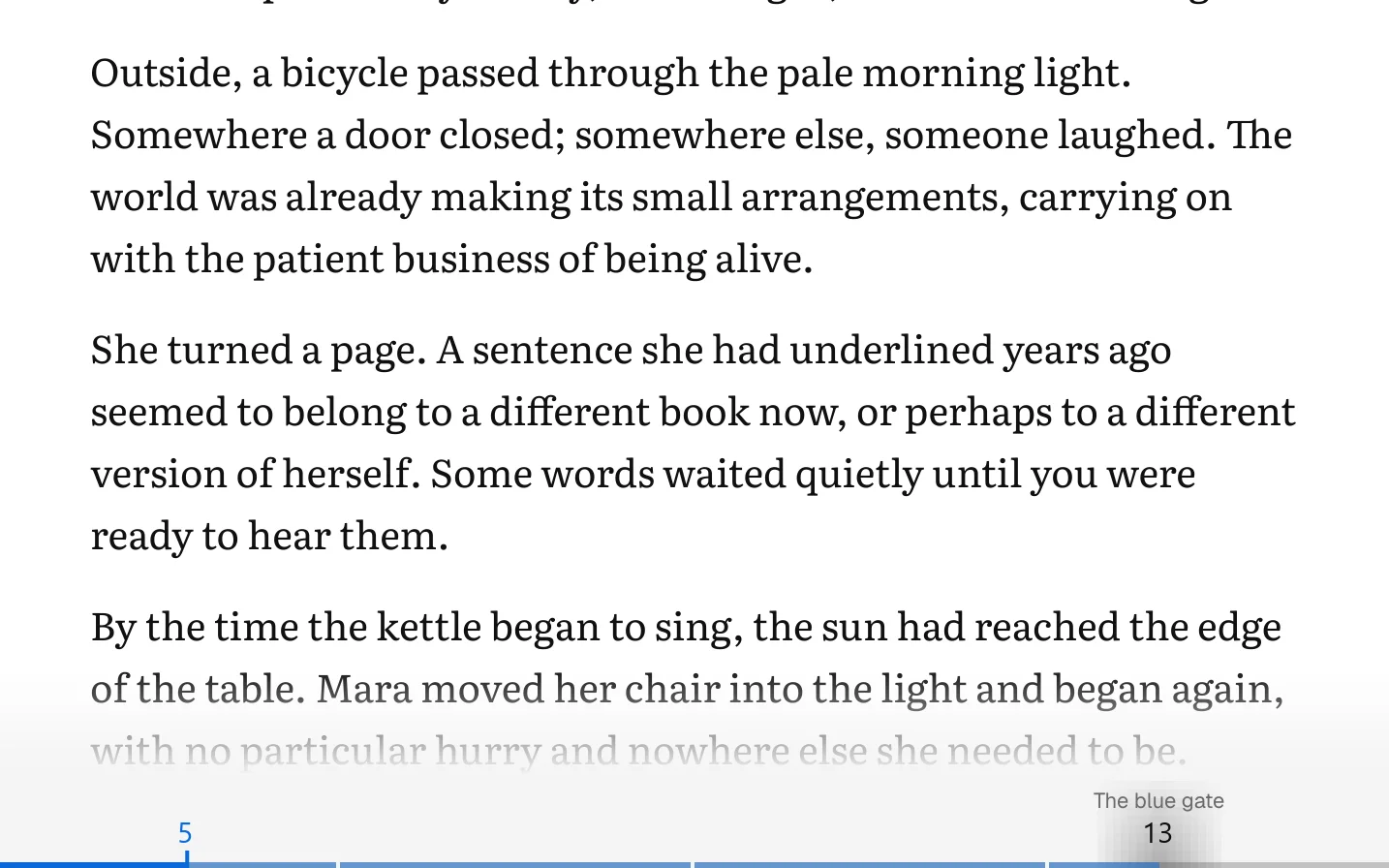
See where you are.
A thin line along the bottom shows your progress, cut into the book’s chapters.
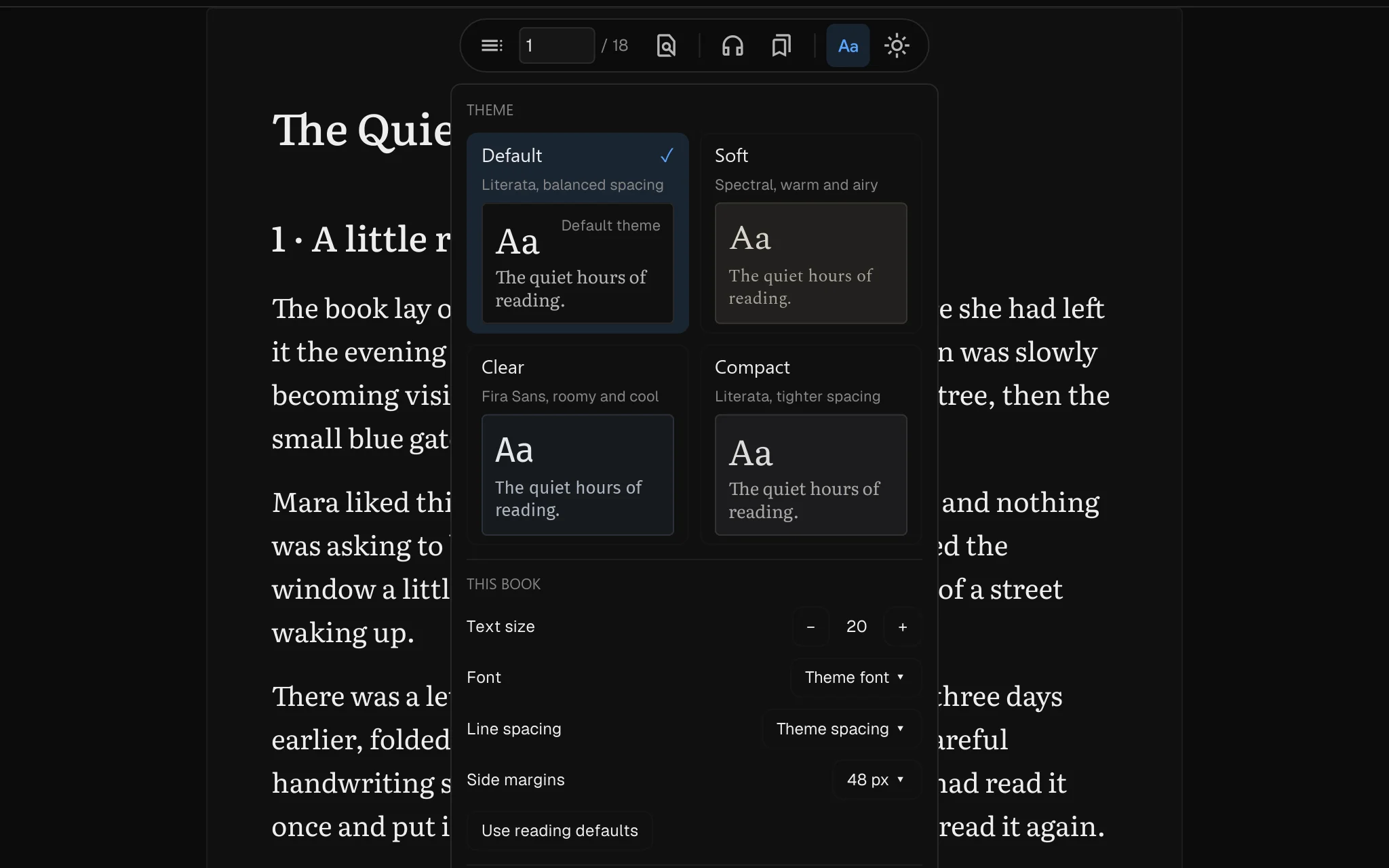
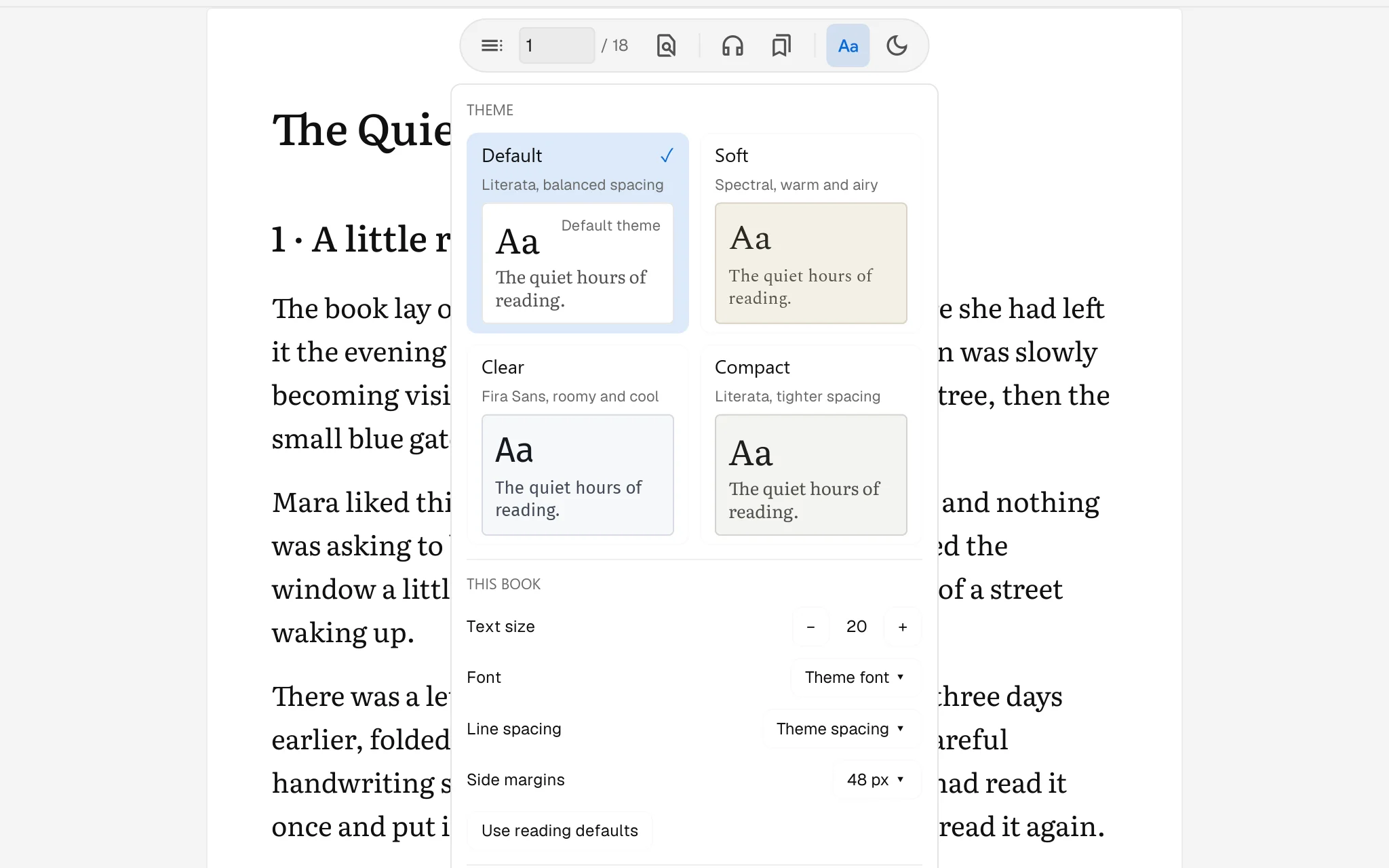
A theme for each book.
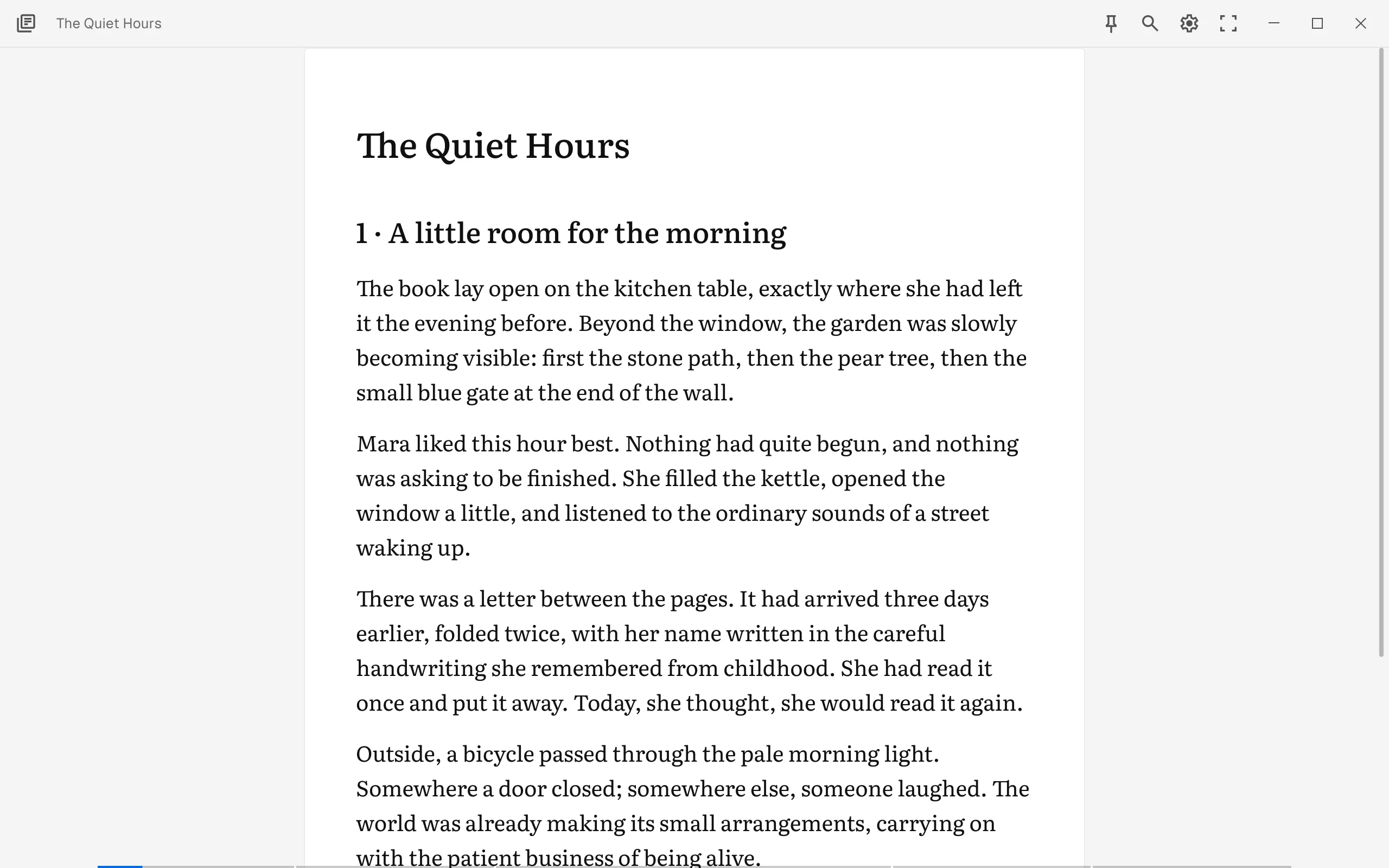
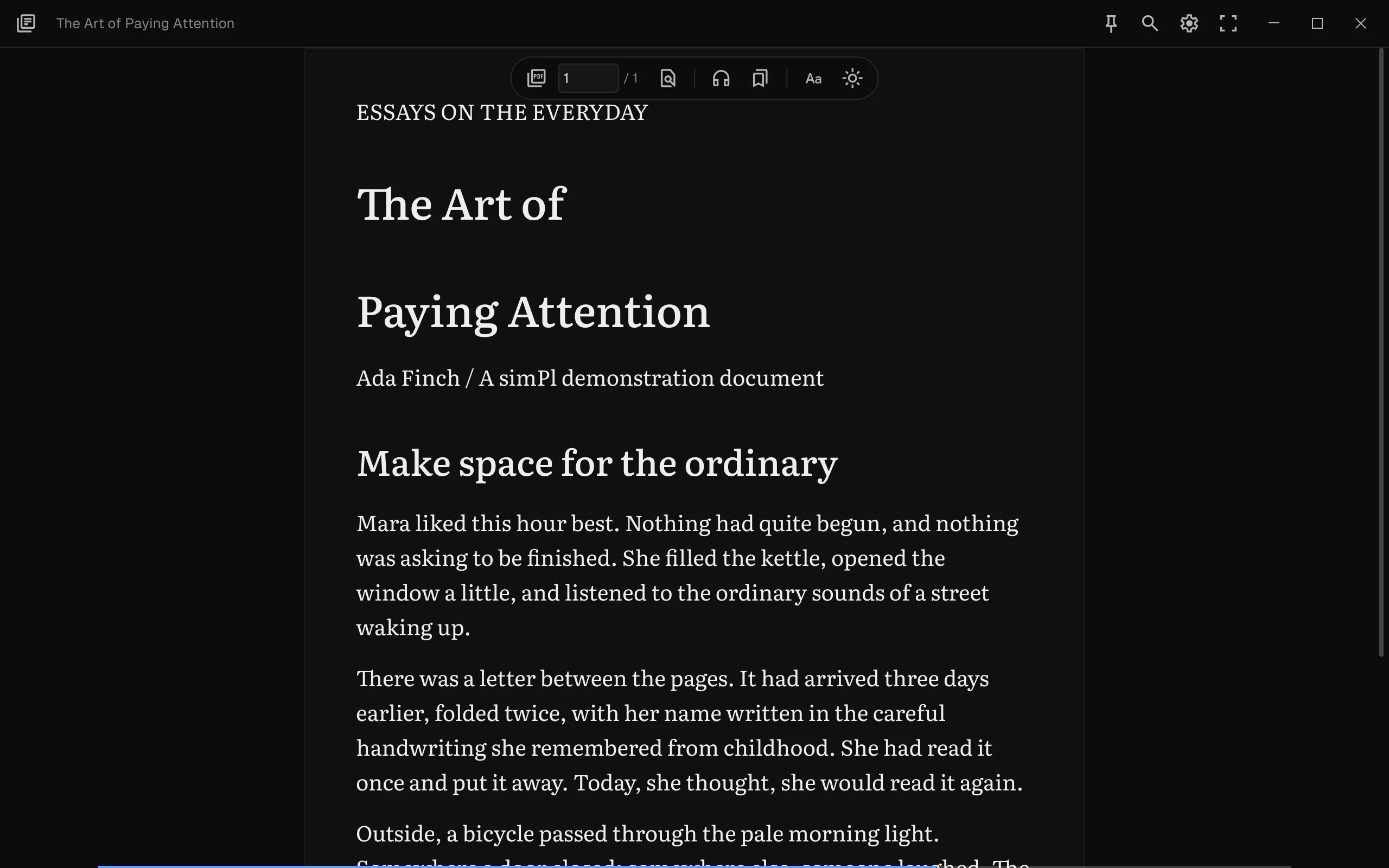
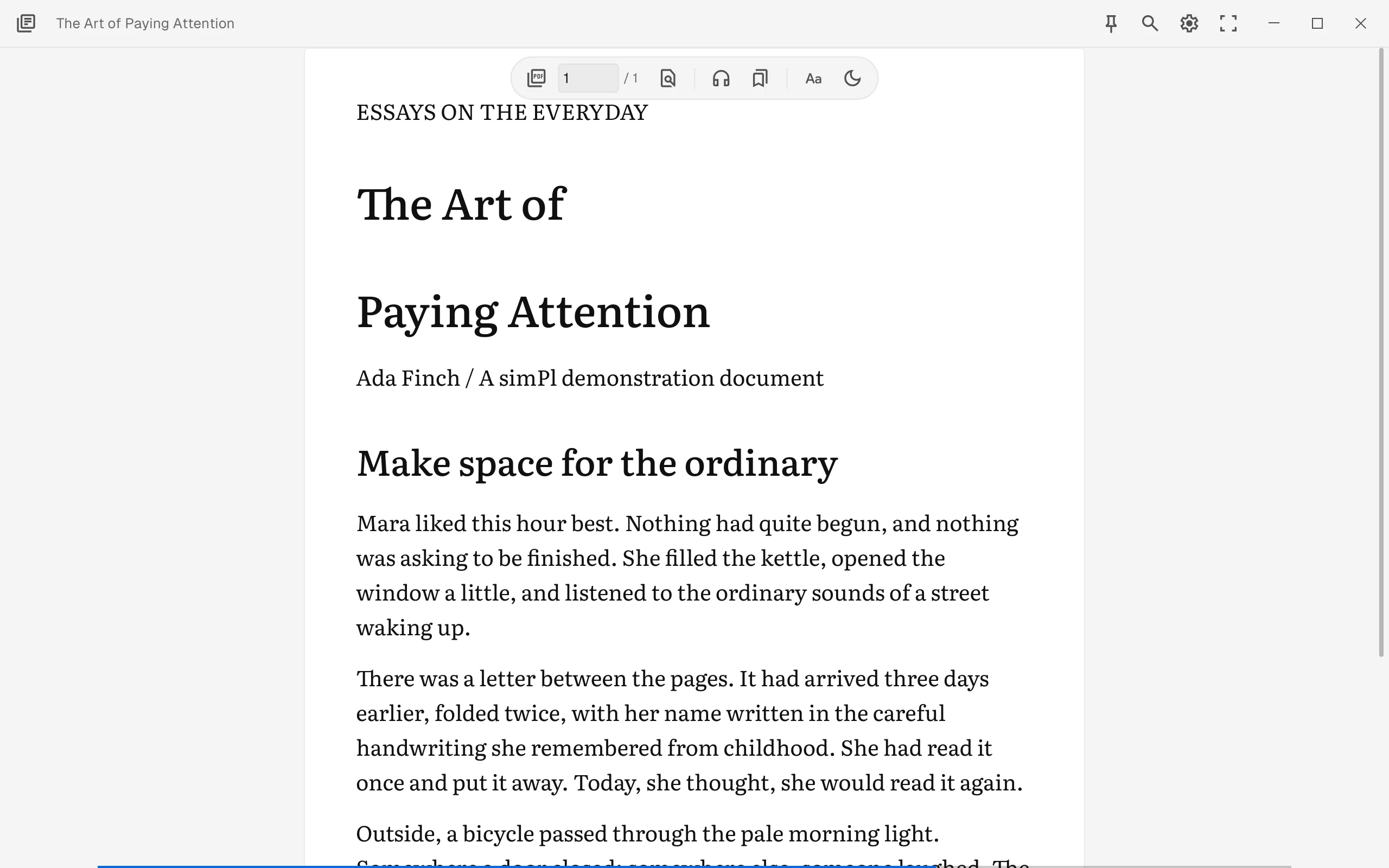
Aa sets the theme, font and spacing of the book you have open, and the book remembers them.
Read, listen and look things up.
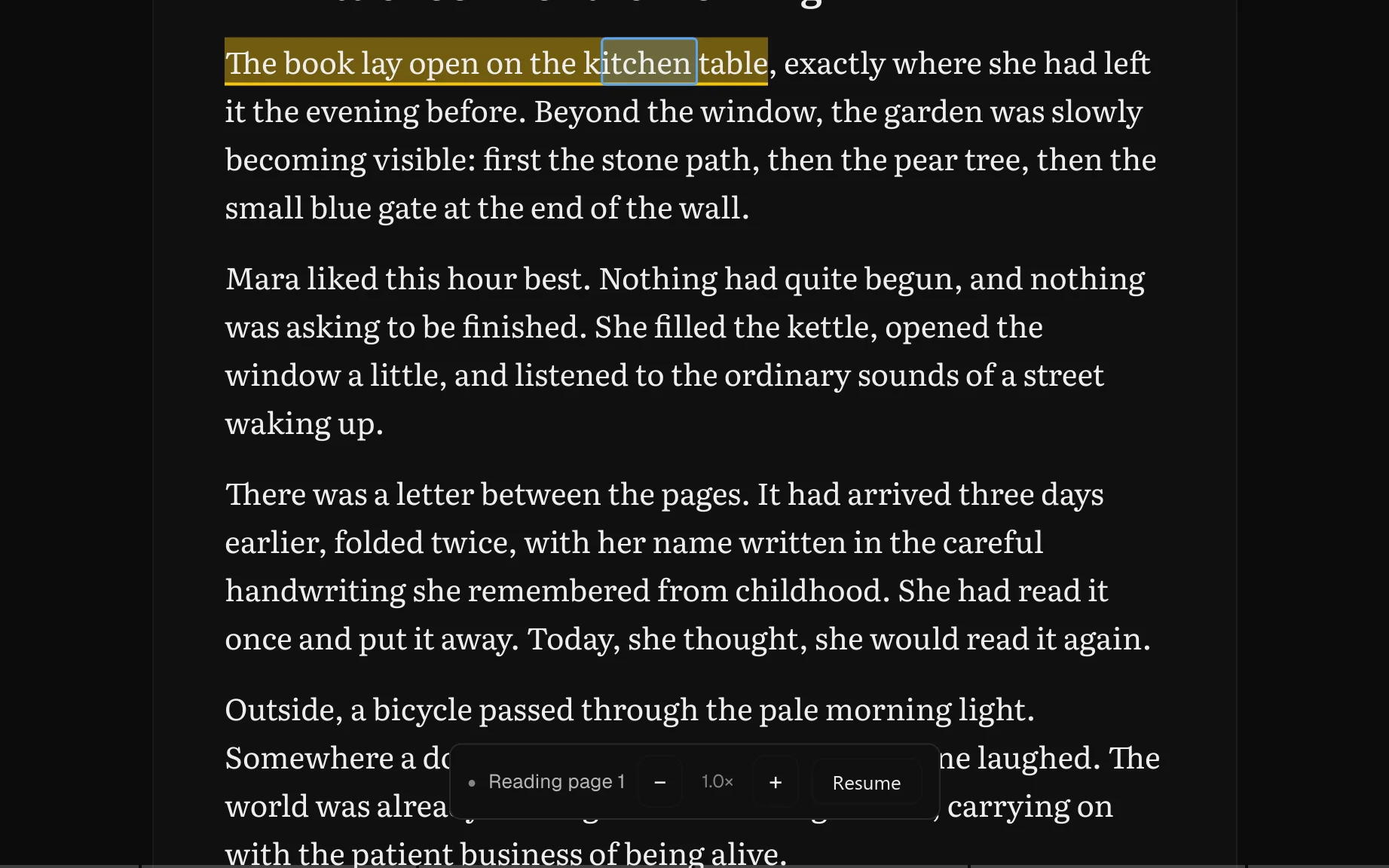
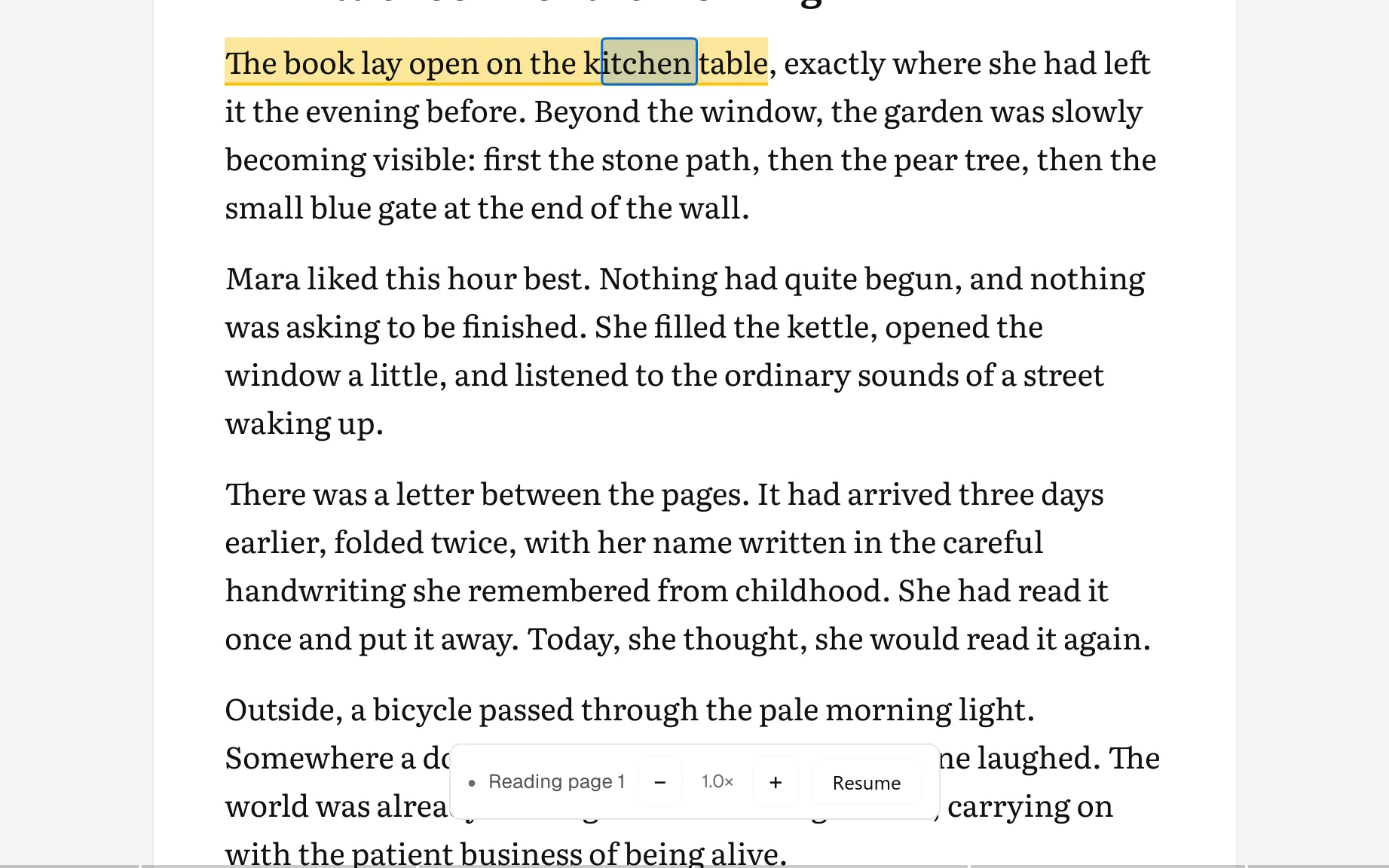
Let the book read to you.
Press Listen and simPl reads on, page after page, with the voices already in Windows.
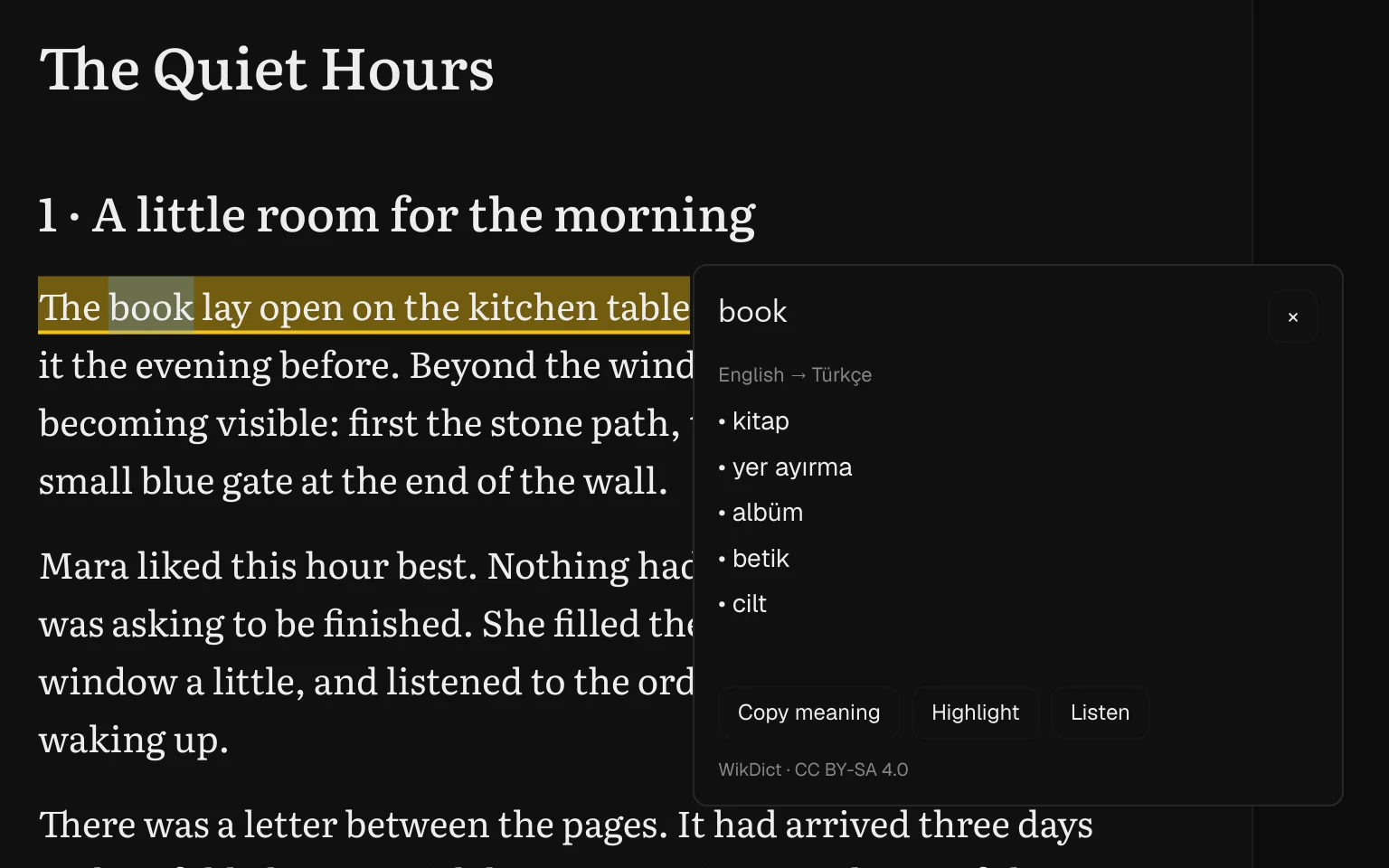
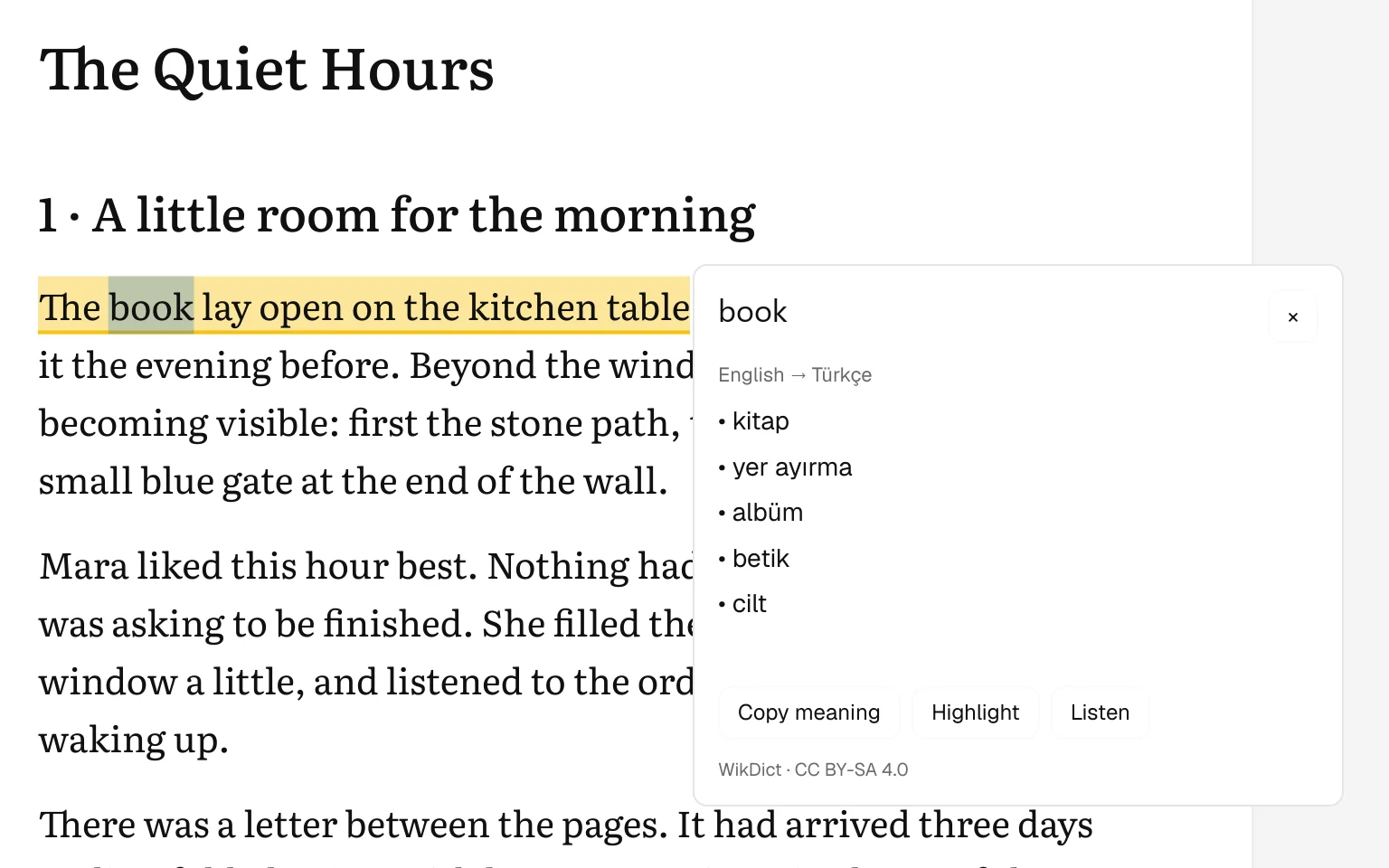
Look up a word without leaving the page.
Double-click a word to see its meaning, from dictionaries that stay on your computer.
Dictionary data: WikDict (Karl Bartel), Wiktionary contributors via DBnary — CC BY-SA 4.0. Normalized and excerpted by simPl. Cropped screenshot. Sources and license. Keep your library and your notes.
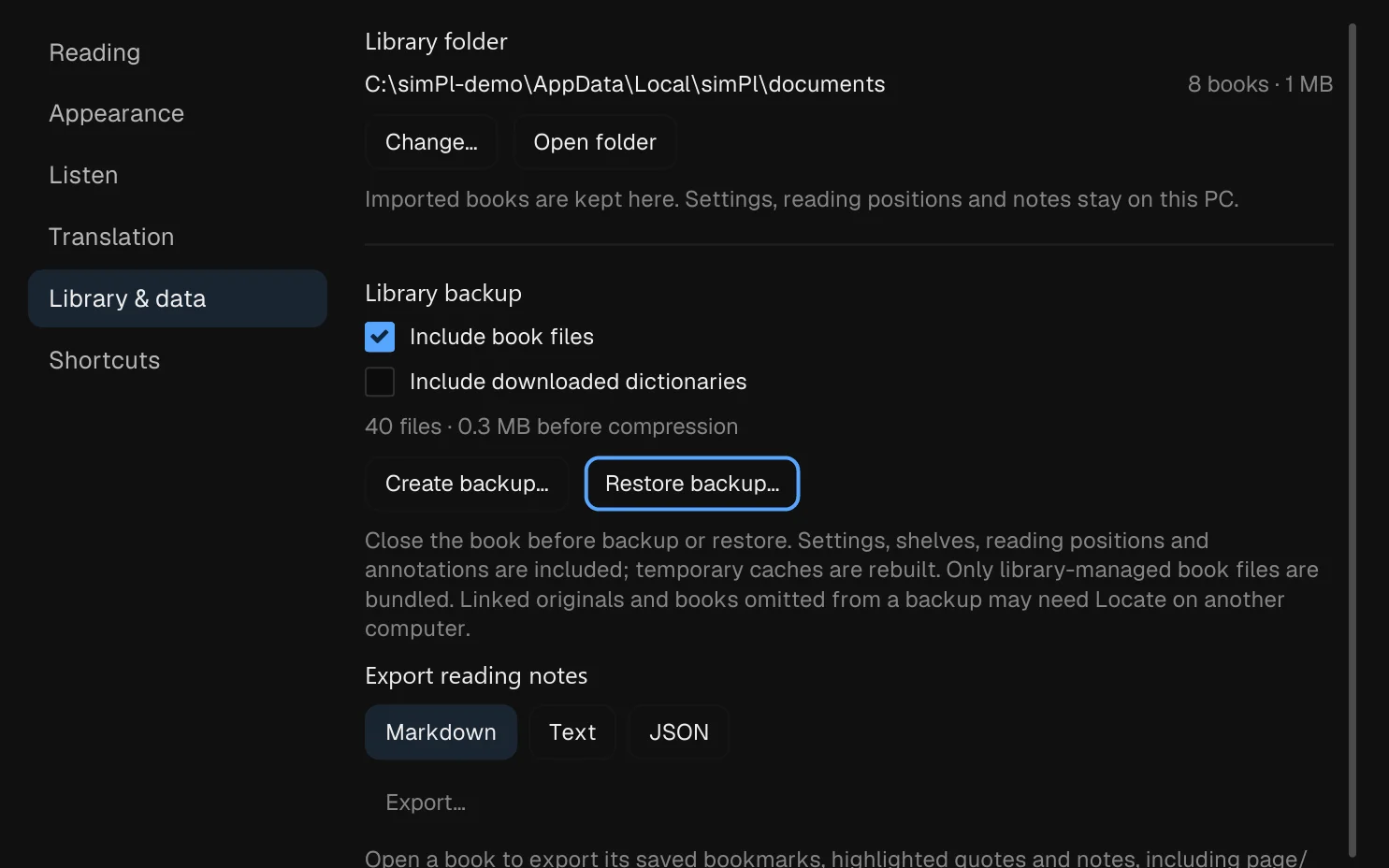
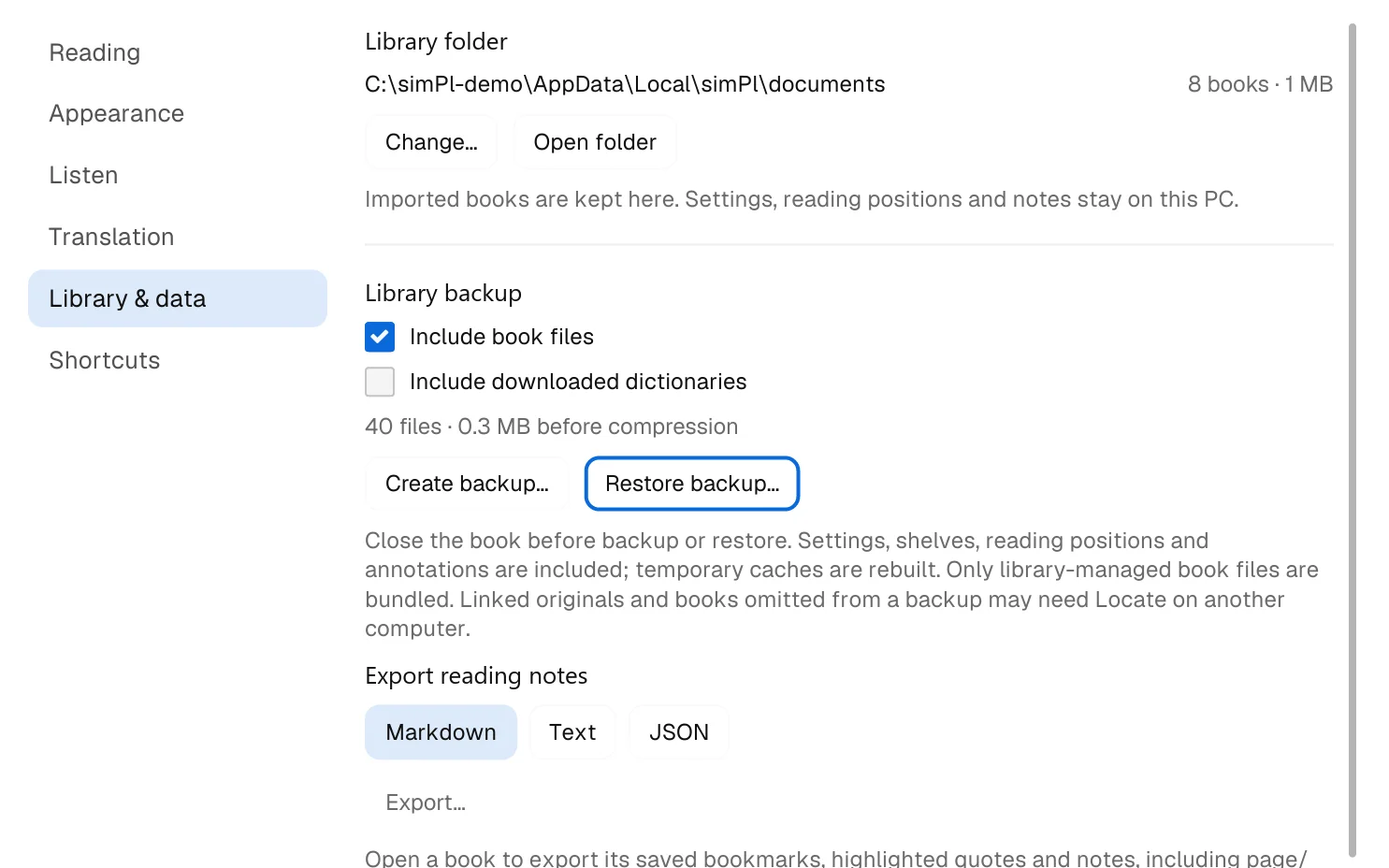
Back up your books, positions and highlights, and export your notes as Markdown, text or JSON.
And nothing you don’t need.
Lightweight
A native 10.1 MB download that opens quickly.
Local and offline
No account. Your books and notes stay on your device.
Shelves
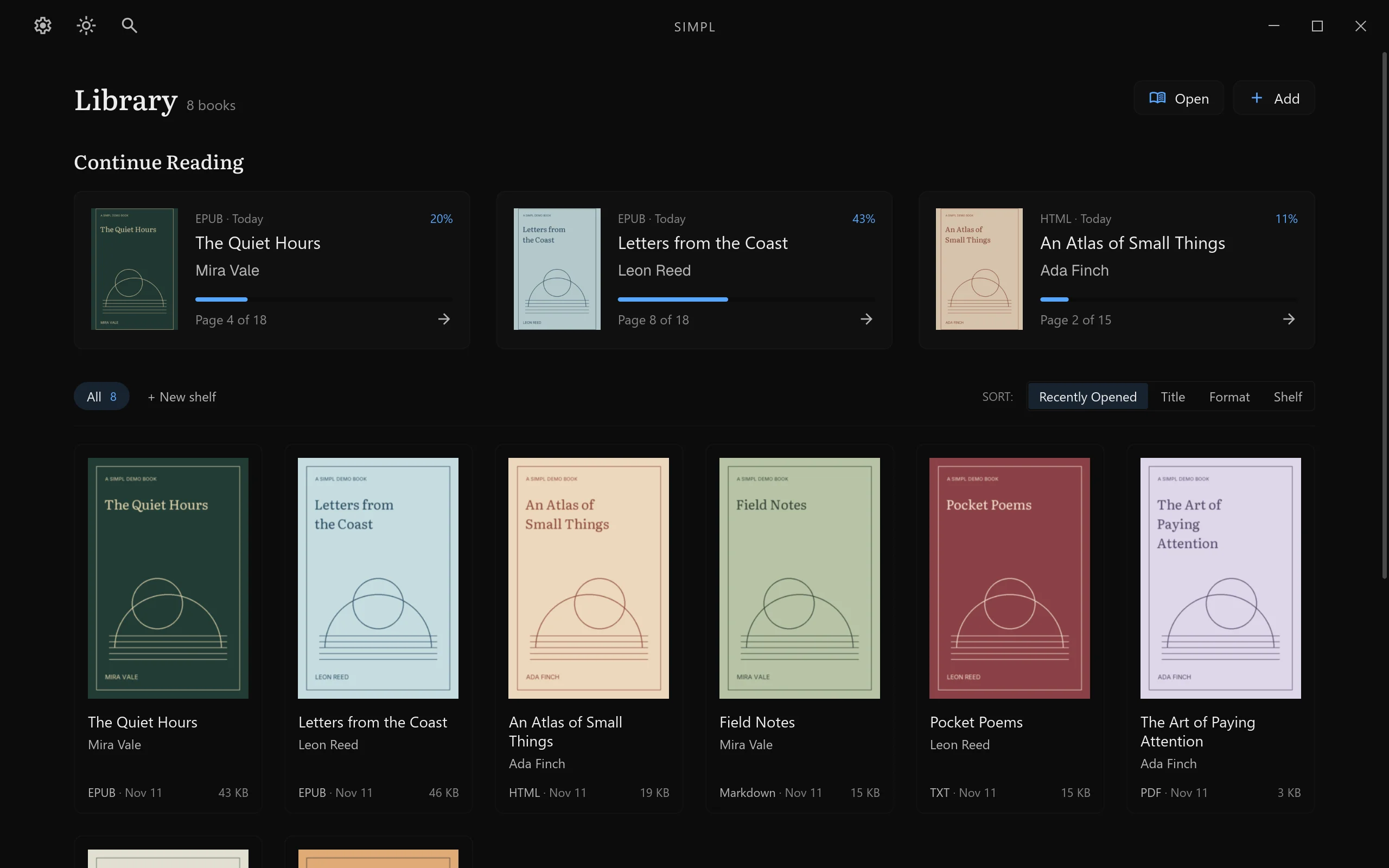
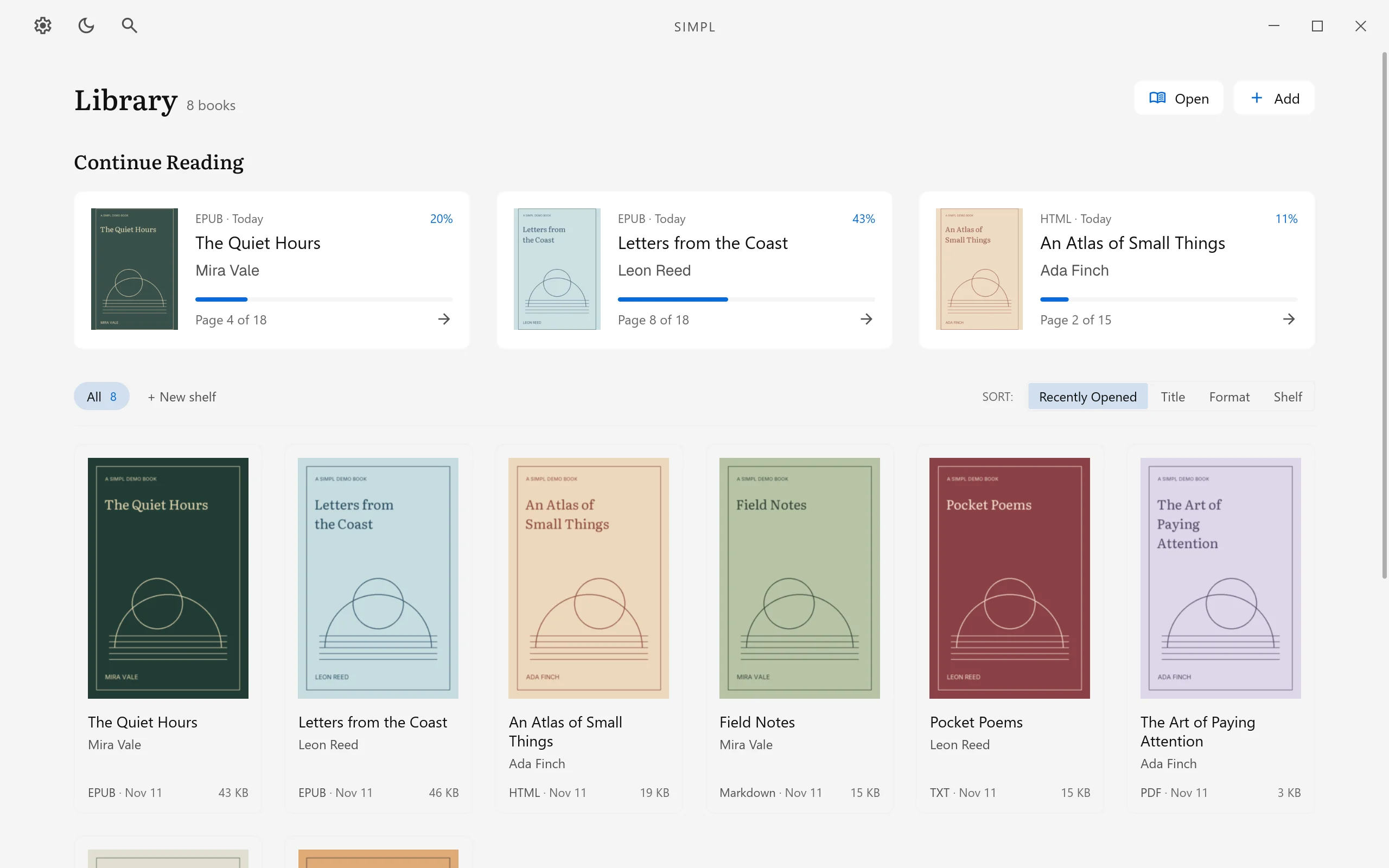
Group, filter and sort your books your way.
Free and open to read
Free to use, at home and at work. The code is on GitHub.
A few useful details.
Which files can I read?
PDF, DRM-free reflowable EPUB, HTML, plain text and Markdown. Open (Ctrl+O), a drop on the window or a double-click in Explorer reads the file where it is. Add (Ctrl+I) copies it into your library instead.
How are PDFs shown?
Two ways, and you can switch without losing your page. Document view keeps the original layout. Book view reflows the text into your reading theme; it needs a PDF text layer and does not perform OCR.
How does Listen work?
Select the Listen icon or press Ctrl+Shift+U. simPl reads from the current page onward and marks the spoken word. To start somewhere else, right-click the text and choose Read aloud from here. It uses the voices installed in Windows, so it works offline.
Which languages can I translate words between?
English ↔ Turkish, Spanish, German, French, Japanese and Chinese, plus Korean → English. Dictionaries are optional downloads, and lookups run on your computer. These are dictionary meanings, not sentence translations. See the dictionary credits.
Can I highlight text and take notes?
Yes. Select text to highlight it or add a note, and right-click a page to bookmark it. Ctrl+B opens them all in a sidebar. Export them as Markdown, text or JSON from Settings › Library & data.
How do I back up or move my library?
Open Settings › Library & data. Create backup saves your settings, shelves, positions and notes in a ZIP, and optionally the books. Change… under Library folder moves your books to a folder you pick, for example on another drive.
How do I install or update simPl?
Run the installer. To update, run the new one over the version you have; your library, notes and settings are kept. The installer is not code-signed yet, so if Windows SmartScreen appears, choose More info, then Run anyway.
SHA-256 of the 0.1.7 installer, also in the release notes:78ef294c7cfdfeff66dc22f671e842489e7937c9fc6ad2951cd59f5d8247fabe
Prefer not to install? Extract the portable ZIP (12.7 MB) and run simPl.exe.
On Android 8.0 or later, download the APK and allow installs from your browser when asked. The universal APK (51.5 MB) also supports x86_64 devices. Checksums are in the Android release notes.